Template Guide
What is a template
A .yaml file defines your survey projects, which consists of sections and variables. To create one, you can directly write a .yaml file or use the Template Builder.
A minimal template structure
- Define your Project metadata
- Within project, define Sections
- Within each section, define Variables
Project
| Key | Purpose |
|---|---|
| name | Display name of the project |
| UUID | Standard UUID |
| Description | Markdown text - no length limit |
| Version | Integer (start from 1) - bump to push updates to importers |
| Sections | Defines the sections of this project |
Sections
| Key | Purpose |
|---|---|
| <Section Name> | Display name of the section |
| StableId | String - Links existing data, never change. |
| Parent | Parent section name - must match an existing <Section Name>; omit for root sections |
| OnMap | See Map Overview below. |
| TitleVar | See Parent Label below. |
| Variables | Defines the variables within this section |
Variables
| Key | Purpose |
|---|---|
| <Variable Name> | The displayed variable name |
| StableId | Links existing data — never change |
| Type | See Variable Types below. |
| Default | Pre-filled value for new record - must match the variable type |
| Tip | Multi-line helper text, rendered as Markdown |
| Overview | True / (omit) - show in overview table |
| Required | True / (omit) - blocks save until filled |
| AutoFillLast | See Quick Capture below |
Each variable type may accept additional arguments, see Variable Types below.
Variable Types
| Type | Description |
|---|---|
| String | Single-line text |
| Markdown | Multi-line text, rendered as Markdown |
| Int | Whole number |
| Float | Decimal number |
| Boolean | Yes / No toggle |
| Date | Date picker |
| Time | Time picker |
| DateTime | Date and time picker |
| Option | Pick from predefined list |
| OptionCount | A number for each option in the list |
| LocationMap | Single GPS point on map |
| PathMap | A path (> 2 GPS points) on map |
| PolygonMap | A polygon (> 3 GPS points) on map |
| Photo | Attach one or more photos |
Time (Date, Time, DateTime)
Set AutoNow: True to to pre-fill the value the current time.
Number (Int, Float)
| Key | Purpose |
|---|---|
| AutoFillLastIncrement | See Quick Capture below |
| Min | Minimum value for this variable |
| Max | Maximum value for this variable |
| Step | Controls how much the +/- buttons increment or decrement the value (Int Only) |
| NumValues | See Rapid Machine Readings below |
| NumDigits | See Rapid Machine Readings below |
Option / OptionCount
| Key | Purpose |
|---|---|
| Options | List of predefined choices |
| Expandable | True / (omit) - allow expanding existing options |
| Multiple | True / (omit) - allow picking multiple options (Option) only |
Map (LocationMap, PathMap, PolygonMap)
Set AutoNow: True on LocationMap (only supports LocationMap) to auto-capture the current GPS sample when new record is created.
For the most accurate result, capture manually instead.
Media
By default, only one photo per variable. Set Multiple: True to allow more.
Please support this project if you need other media type such as
AudioandVideo.
Special Features
Map Overview
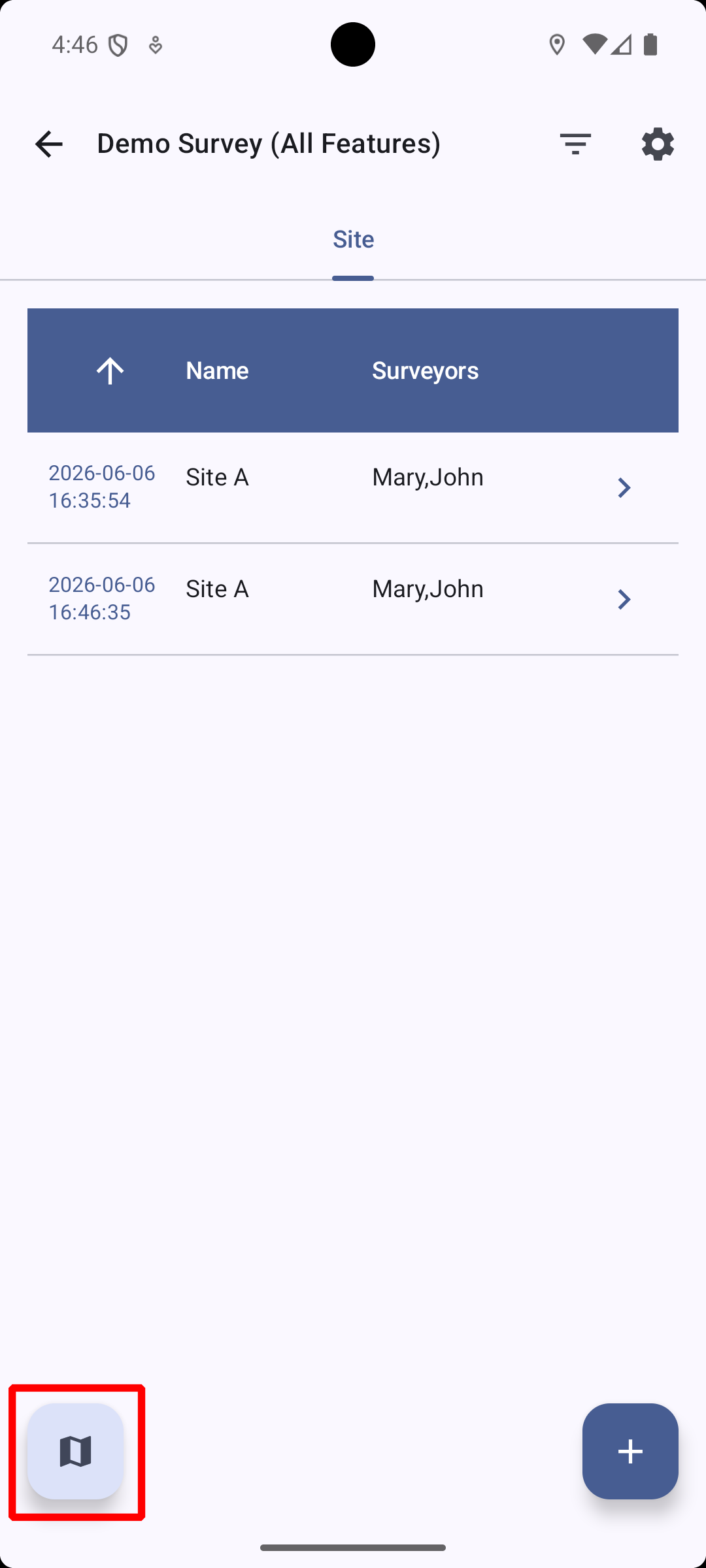
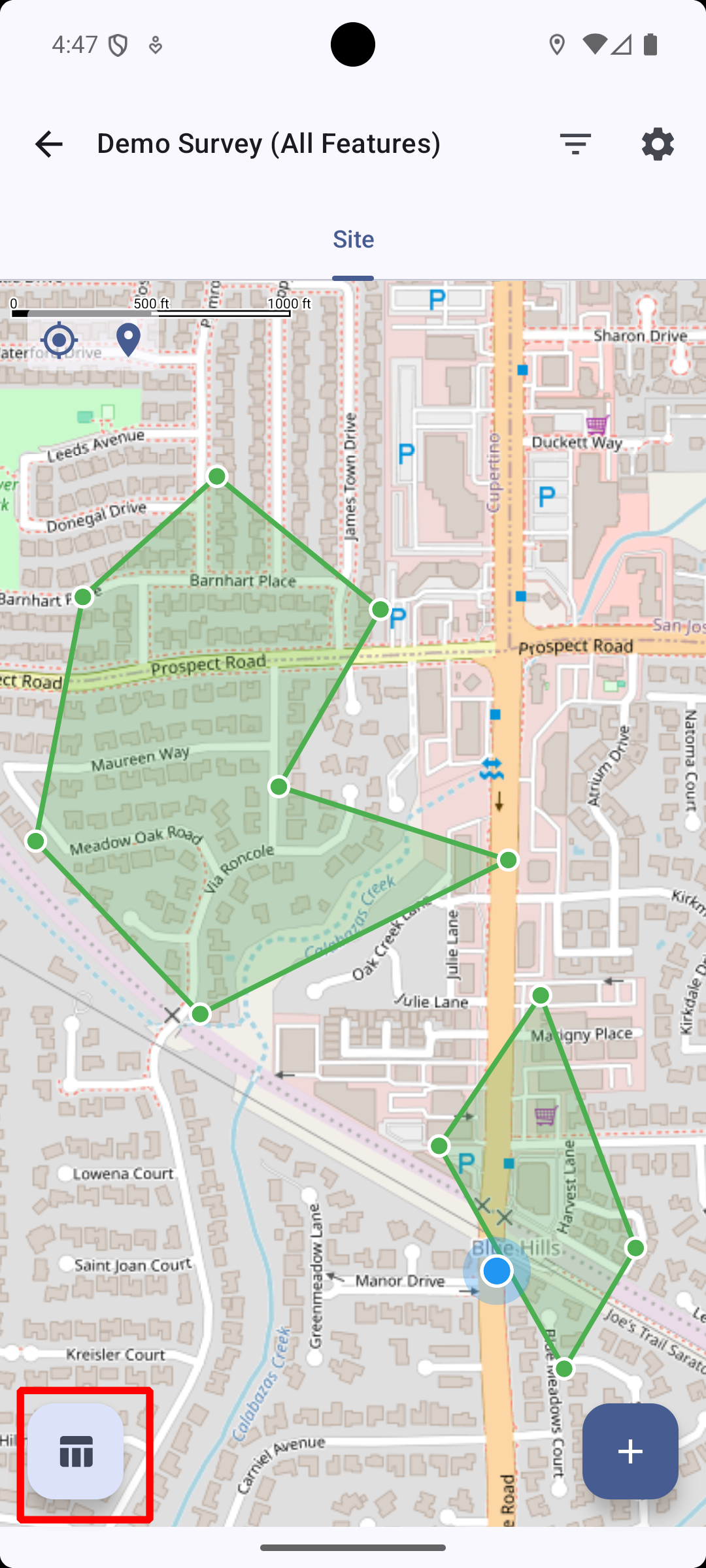
Set OnMap to the name of a LocationMap, PathMap, or PolygonMap variable in the same section. This adds a map toggle button to the overview table — see all your records plotted as points, paths, or polygons at a glance.
Parent Label
When working in a child section, it’s easy to lose track of which parent record the data belongs to. Set TitleVar to a variable from the parent section — its value appears as a subtitle in the child overview, keeping the context visible at all times.
Quick Capture
When collecting a batch of similar records using Save & Next, AutoFillLast carries the previous value into the next record so you only type what changed. AutoFillLastIncrement (Int and Float only) does the same but adds Step (default 1) each time.
Rapid Machine Readings
When recording from instruments that display multiple fixed-format readings — for example 1.203 0.203 2.301 -0.203 0.001 — set NumValues to the number of readings (4 here) and NumDigits to the number of digits after the decimal point (3 here). Just type the digits one by one — the decimal point appears at the right position automatically, and focus jumps to the next variable after all digits are entered.
Sharing & Updating templates
Sharing
Host your .yaml on Google Drive and set sharing to “anyone with the link.” Paste the share URL directly. For any other host, use a direct-download URL.
Updating
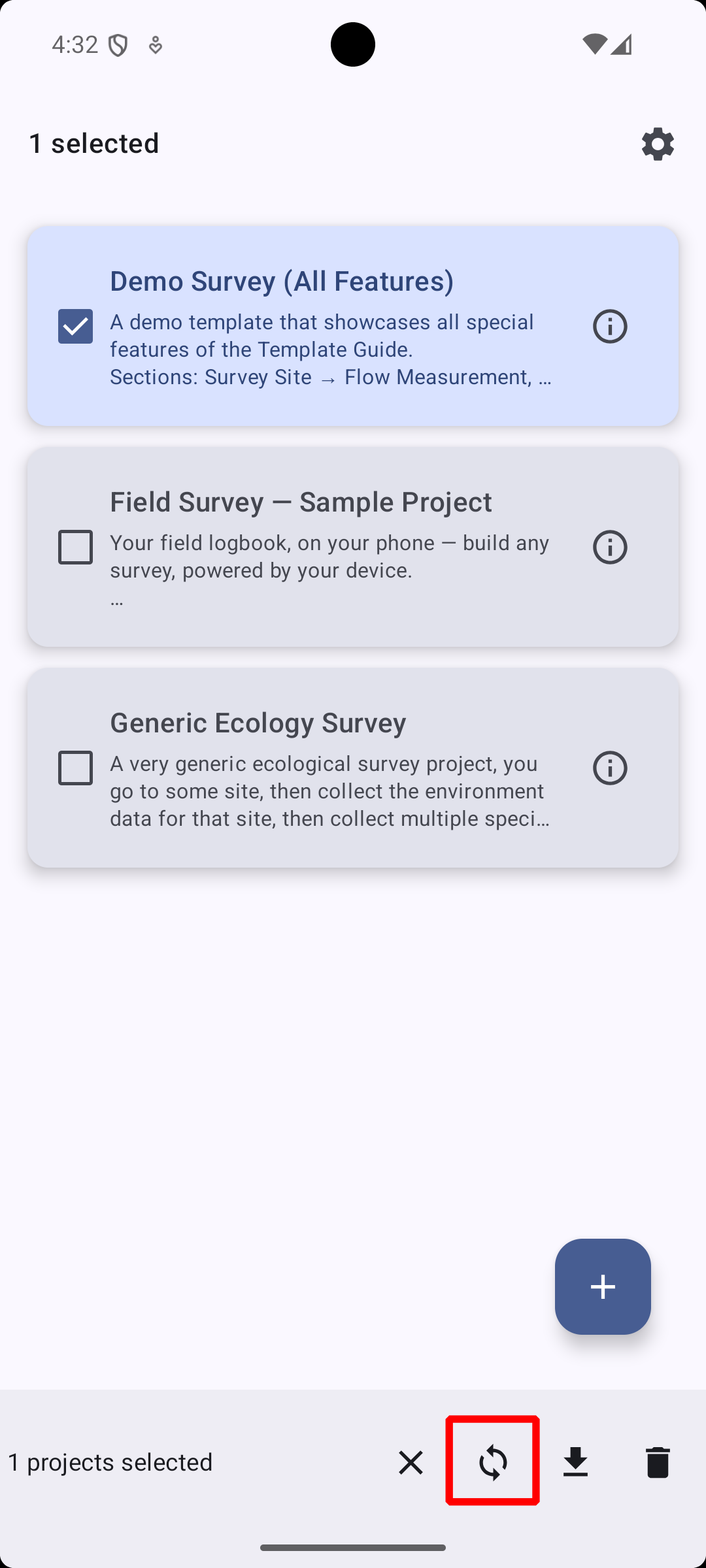
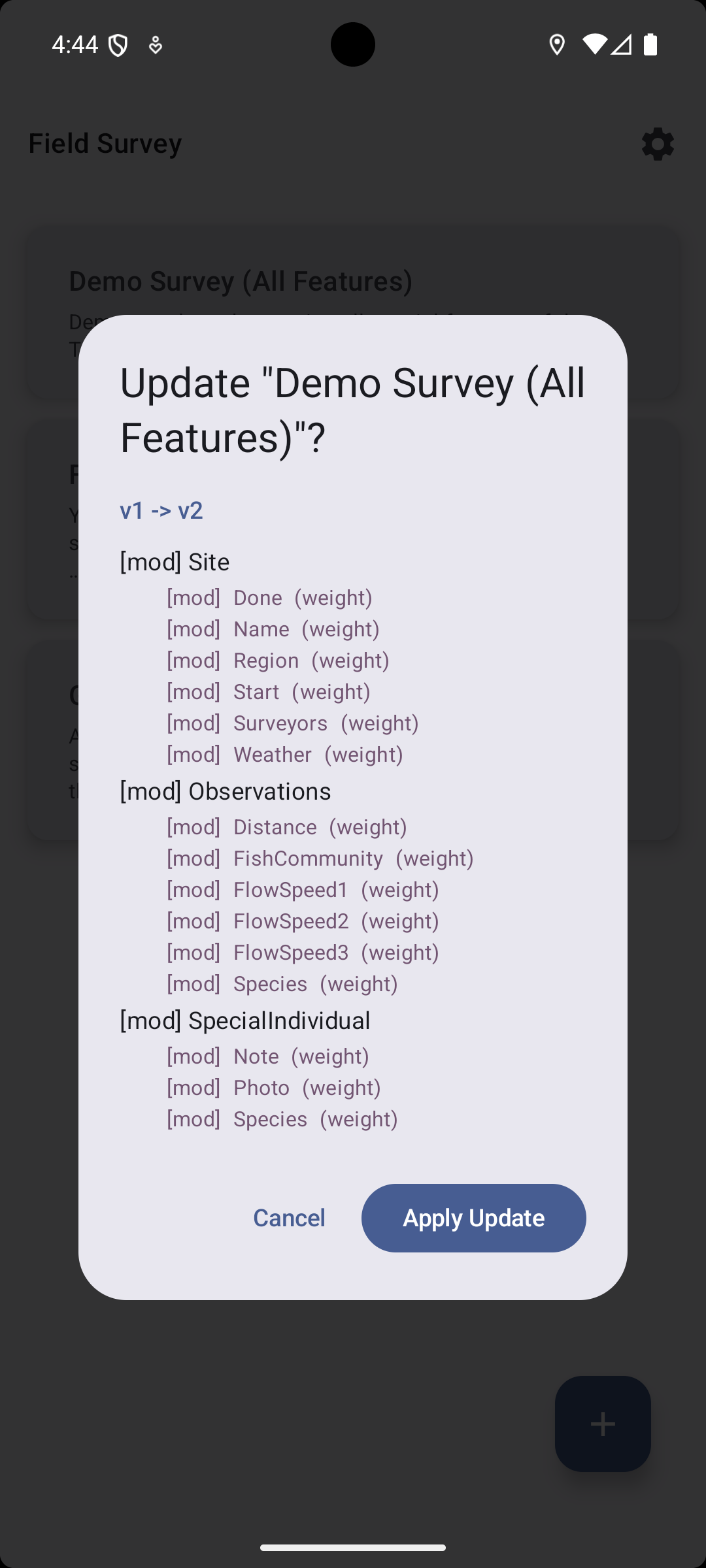
Once someone has imported your template via URL, you can push updates to all of them: edit the .yaml, increment Version, and update to the same URL. Anyone can easily update their project easily.
Never change these after publishing:
UUIDStableIdof any section or variable